One-line summary
Demonstrates site-level automatic protection on the Finance SharePoint site plus same sensitivity label published to Finance users so they can manually protect files and emails across SharePoint, OneDrive, Teams, and Outlook.
Tools Used
- Microsoft Purview Information Protection (sensitivity labels, label policy, Activity Explorer)
- Microsoft 365 E5
- Exchange Online, SharePoint Online, OneDrive, Microsoft Teams
- Sensitive info types: custom financial classifiers (loan numbers, account numbers), SSN, tax IDs, PCI patterns
Approach
1 policy, 1 label: site auto-protection + same label published to users for manual apply. Use a M365 group plus add single user mailboxes for wholesome protection.
- Create sensitivity label Client Data Confidential (encryption + allowed access).
- Create a M365 Group for targetting Finance-Confidential
- Publish a label policy targeting the Finance-Confidentiak SharePoint site (site auto‑apply) and Finance-Confidential M365 Group, making it available for manual assignment to group members.
- Upload and manual-apply tests; send protected messages to external test recipient(s).
- Collect evidence from SharePoint, Outlook, Teams, OneDrive, Purview Activity Explorer and Message Trace.
Label Configuration
- Name: Client Data Confidential
- Locations: SharePoint (Finance-Confidential site URL, site auto-apply); OneDrive; Teams (files & chats); Exchange (m365 group)
- Users in scope: Finance-Confidential (manual assign); site auto-apply covers site content
- Condition: Content contains configured financial sensitive info types or custom classifiers
- Actions: Apply sensitivity label with encryption and usage restrictions; create Purview incident and alert admins
Steps Taken
- Create sensitivity label “Client Data Confidential” with encryption and access control.
- Publish label policy targeting Finance-Confidential SharePoint site and M365 Finance-Confidential M365 Group.
- Confirm Finance-Confidential is mail enabled in Exchange so it appears in Exchange selectors.
- Add user mailboxes in exchange location pikcer for auto-apply as well as inheritance does not happen in m365 mail enabled groups
Screenshots
Screenshots showing the steps taken and evidence collected. Click any image to view full size.
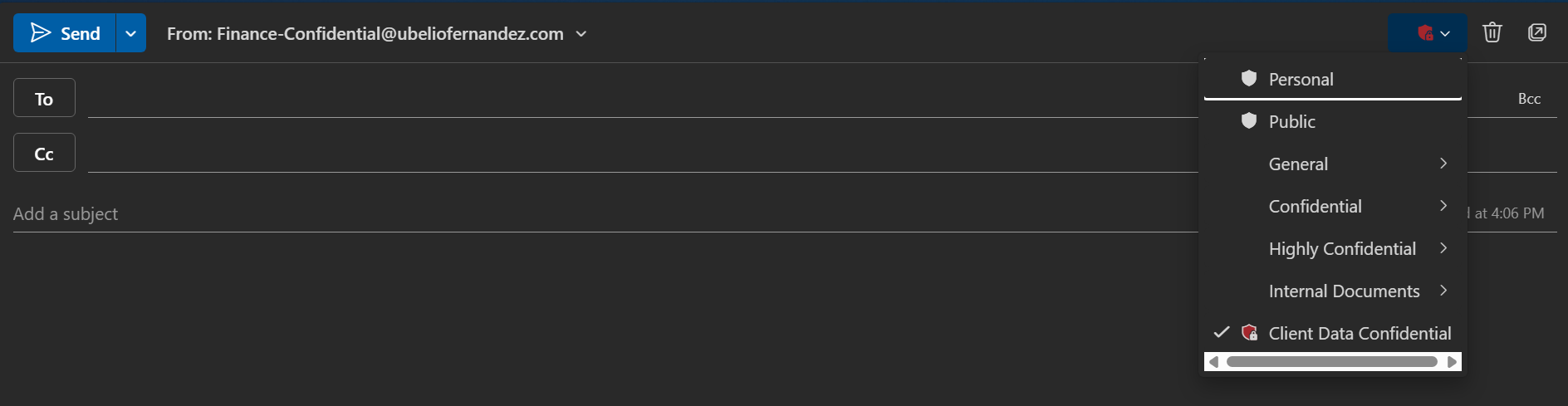
This screenshot shows what autolabeling looks like when sending email from the group mailbox, see the autoselected client-data confidential label
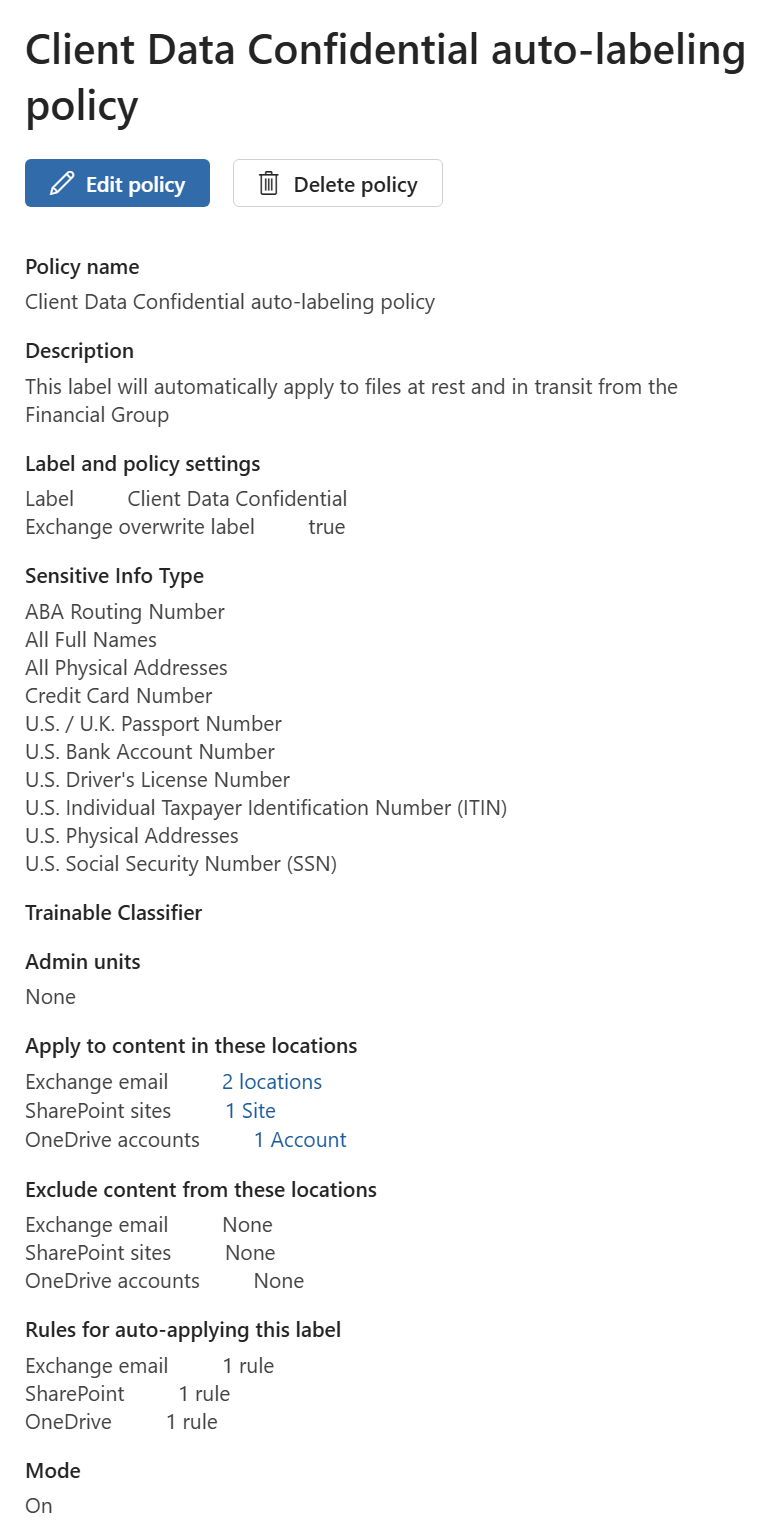
This screenshot shows the configuration of the auto-labeling policy
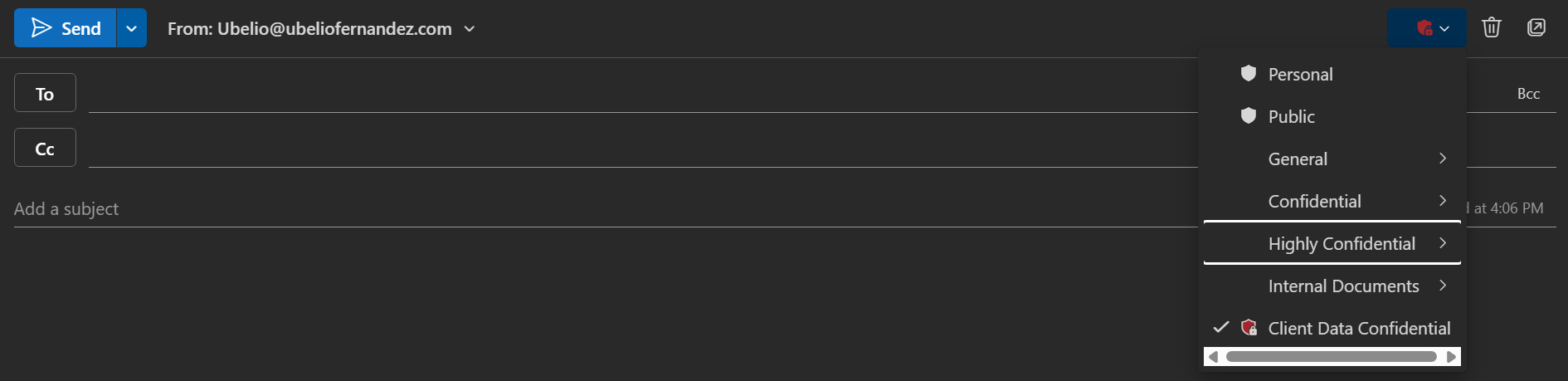
This screenshot shows what autolabeling looks like when sending email from the user member mailbox, see the autoselected client-data confidential label
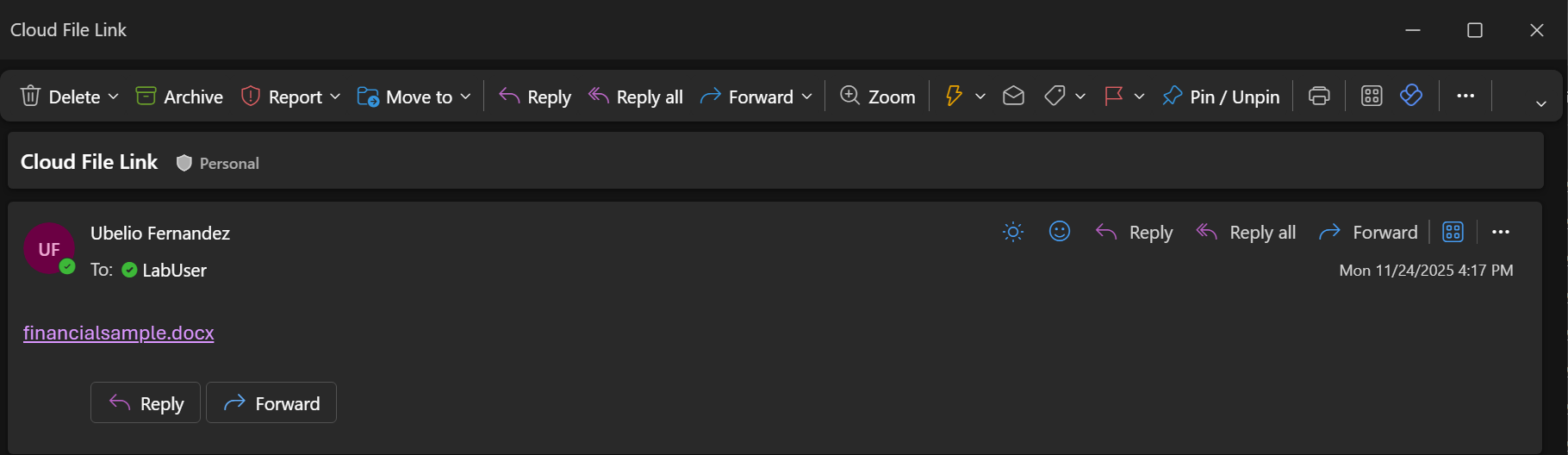
This screenshot shows what happens when sharing a document that is labeled but the email is not labeled, as proof that autolabeling works, see screenshot of user experience
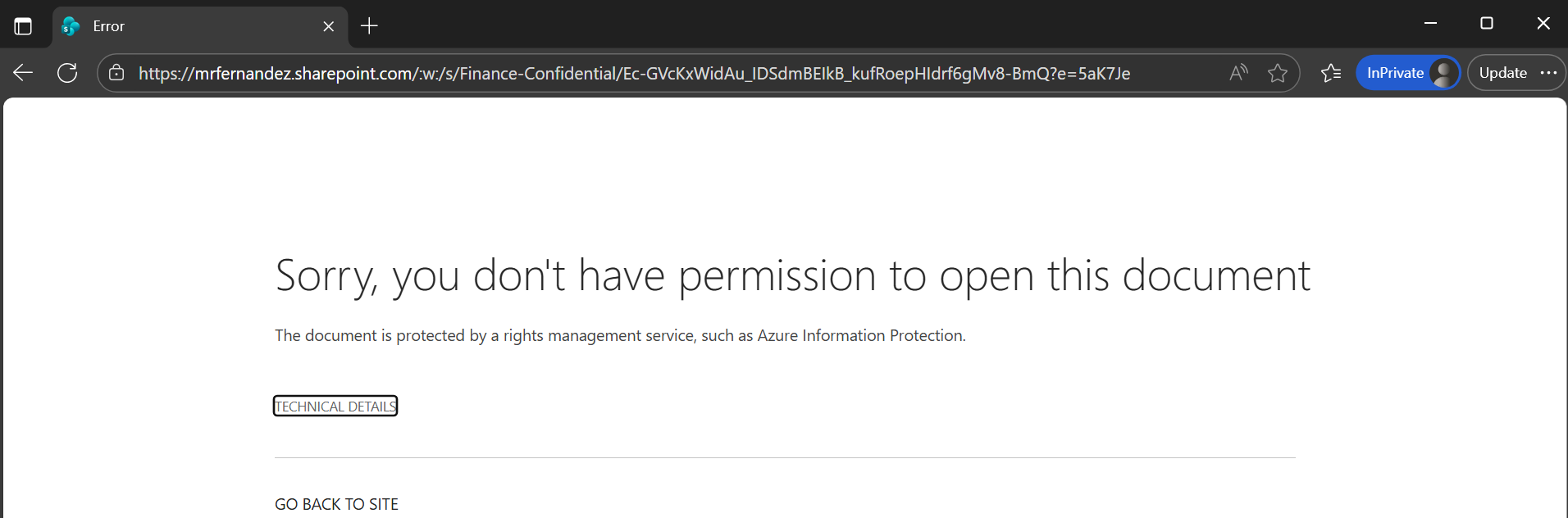
User experience when trying to open a labeled file, from teams, email or directly from sharepoint.
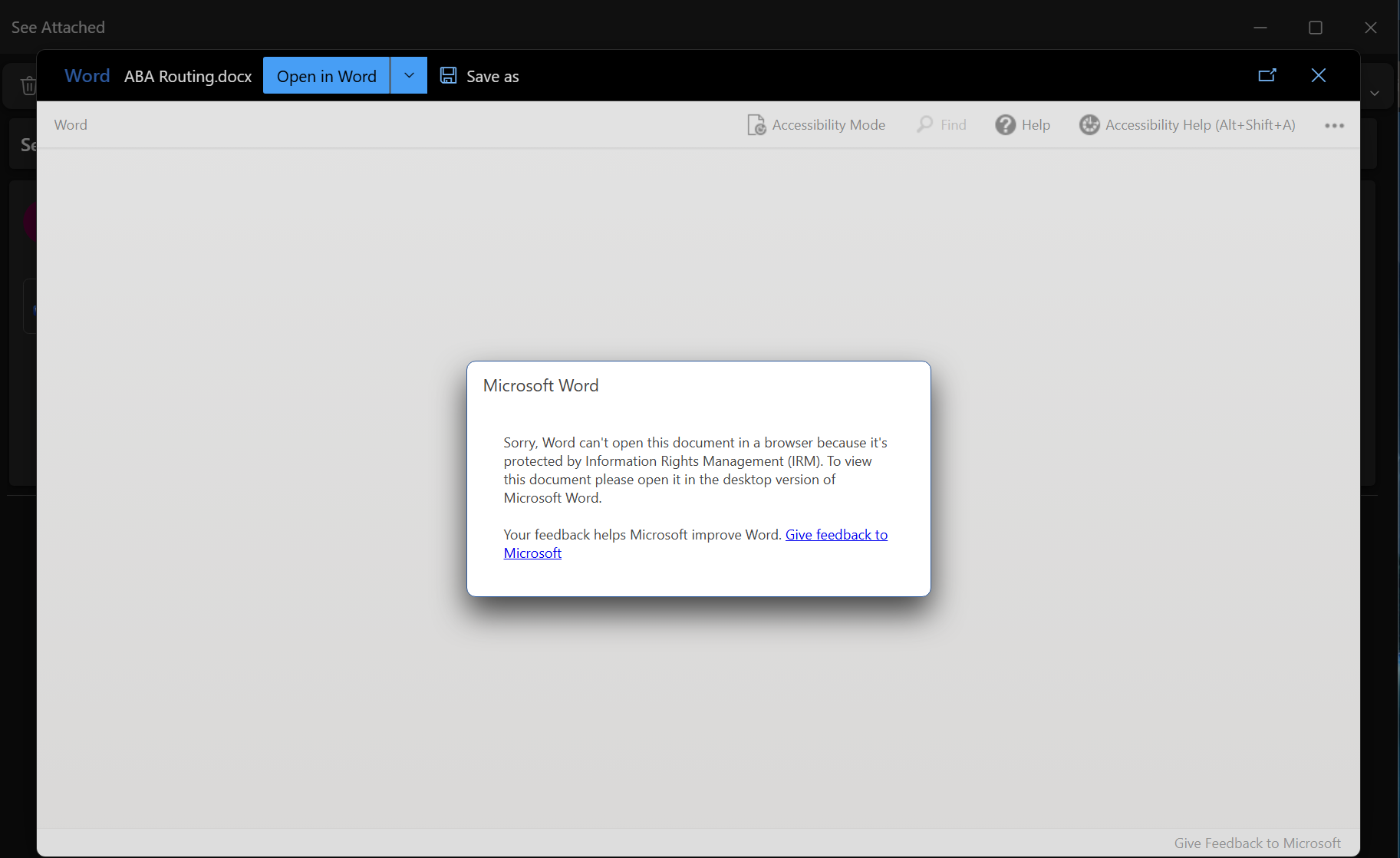
User experience when trying to open a local file that is labeled, from email attachment or file explorer
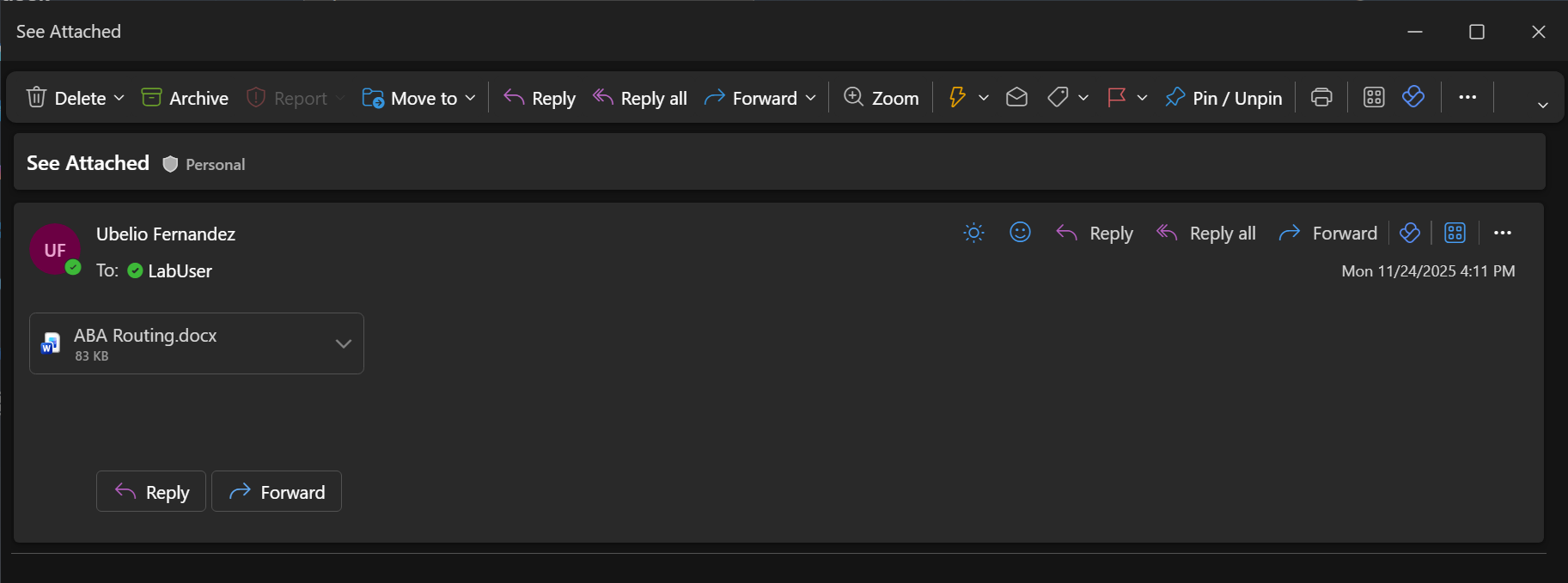
Labeled file being sent as attachment without a label on the email itself
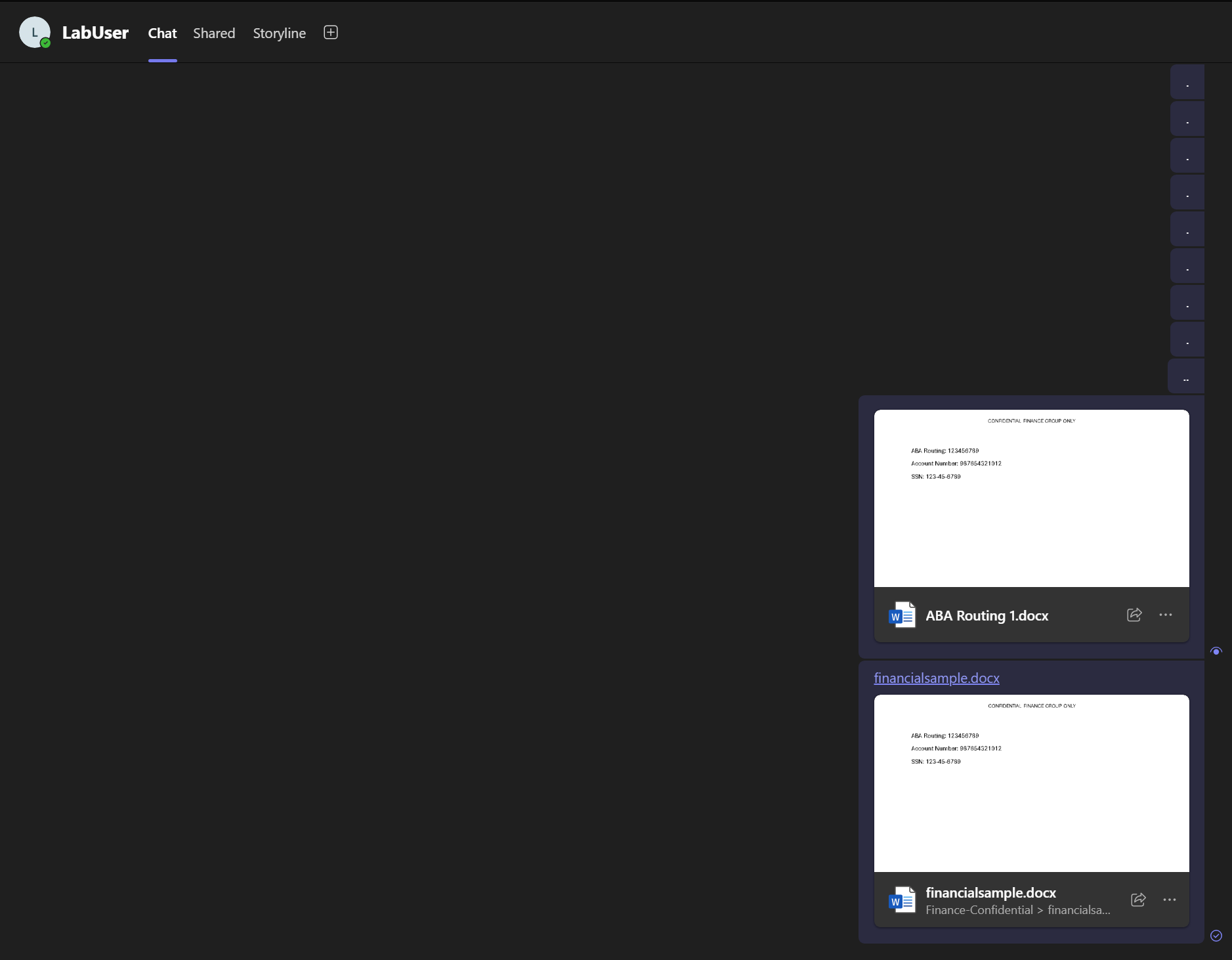
Teams message showing the sharing of both a local and cloud labeled file
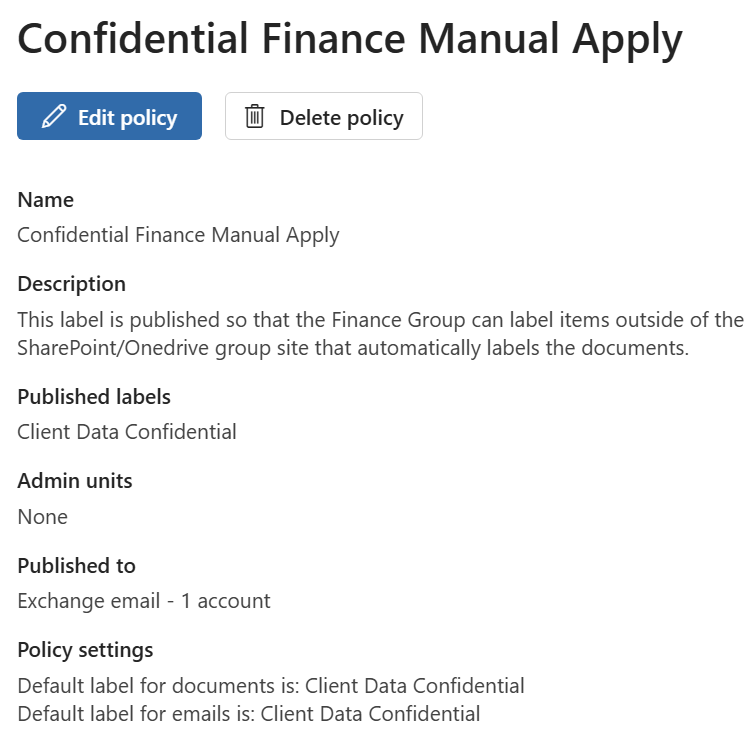
Screenshot showing the Manual Apply policy made available to members of the M365 Group

Screenshot showing what manual assignment looks like in word for a document that needs to be protected
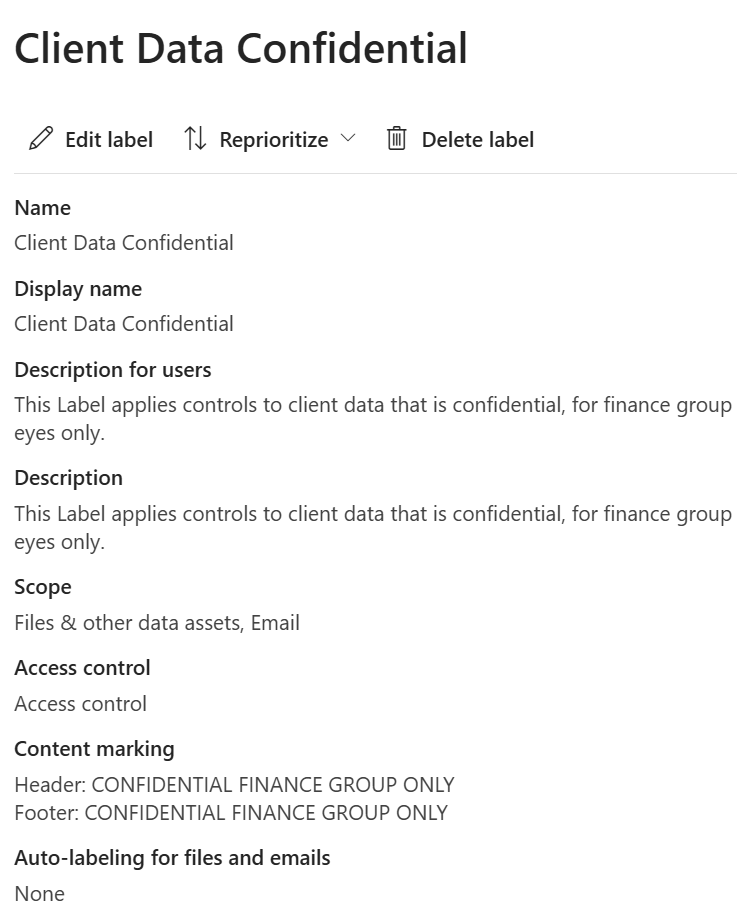
Sensitivity label definition and configuration
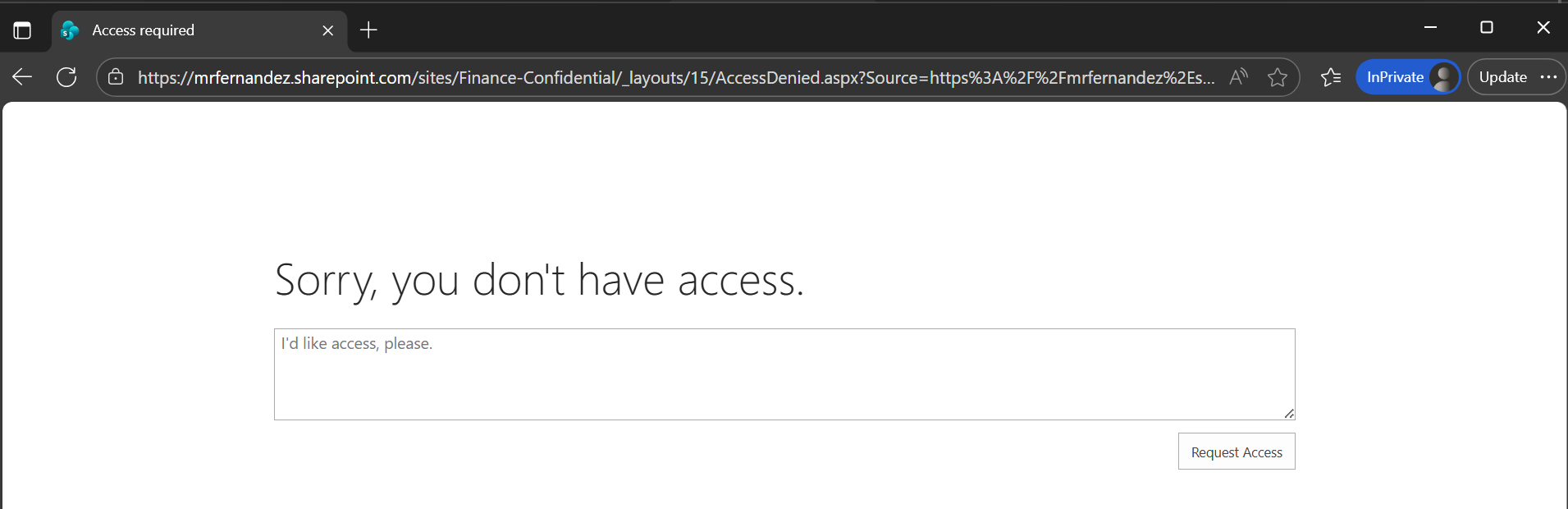
Non-member trying to access the sharepoint site that is auto-labeled
Outcome
- Auto‑apply: Files uploaded to Finance SharePoint show the Finance label and encryption metadata.
- Manual apply: Users can apply the same label to files and email attachments; protection persists when moved/shared across OneDrive, Teams and Outlook.
- Enforcement: External recipients are blocked or required to authenticate per the label policy; admin receives Purview incidents/alerts.